Working With Workpace
FAQ
Click here to go directly to the
Frequently Asked Questions
This
document is intended to answer the common questions asked by users new to
WorkPace. It is highly recommended each user reviews the Workpace Multimedia
training module. This
module explains why WorkPace is required and how to change the settings to suit
your work practices.
WorkPace Configuration
console
To access the Workpace configuration console double click
on any of the Workpace icons in your system tray or the WorkPace icon on your
desktop.


The
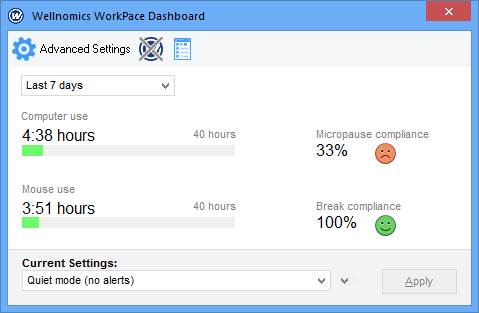
configuration console will open. See figure 1 below. You may also right mouse click on these icons to
manually do some exercises, put WorkPace on standby or display the status
panel.
 After you make any changes to your
settings you must click the apply button in the WorkPace console to
activate the new settings.
After you make any changes to your
settings you must click the apply button in the WorkPace console to
activate the new settings.
Remember
on-line help is built into WorkPace, press the F1 key on your keyboard when in
the Workpace
console, this will
display help about the configuration window you are currently in. Alternatively
activate help via the help tab in the WorkPace console.
You
may also wish to run the setup wizard. This will ask you a series of questions
about your computer habits, work practices and previous injuries. These
questions are used to establish the initial settings for WorkPace. You may run
the wizard at any time or change the settings manually. To activate the setup
wizard open the WorkPace
console and select
settings – setup wizard.
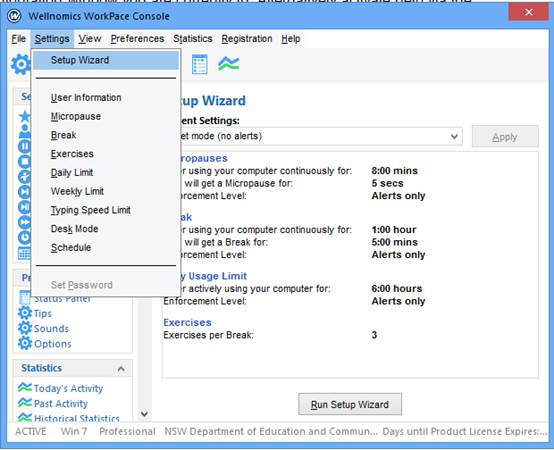
After the wizard is complete the settings
appropriate for your answers will be displayed. Please review these carefully.
Please note: if you answered you suffered from an injury your
settings may be quite strict. You can adjust your settings
manually at any time if required.
How do I activate the Multimedia Training?
To
obtain the most benefit from WorkPace, it is highly recommended you complete
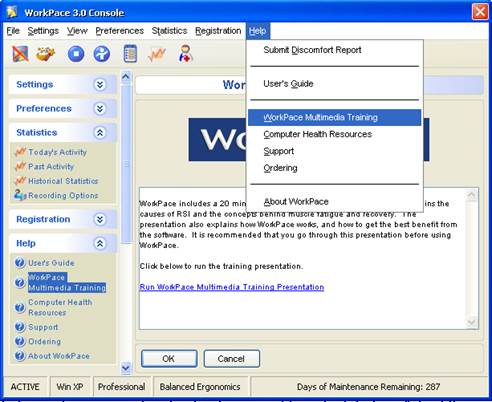
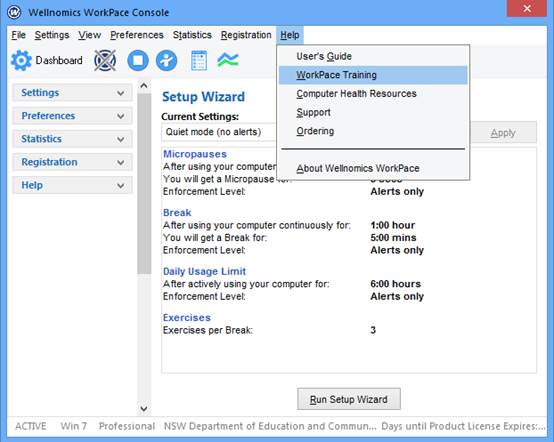
the Multimedia training. To activate the Multimedia training tutorial select
Help - Multimedia – training when in the WorkPace console. You may exit the training at any time by pressing the
“Esc” key on your keyboard. When you return to the training it will commence
where you left off. Note the training module takes about 10-20 minutes to
complete.
Version
4.x and below
Version
5.x and above
How
do I put WorkPace on hold (standby)?
 From time to time you may need to put
WorkPace on hold (standby). This may be when you are performing a presentation
etc. Open the Workpace
console and click on
the standby button.
From time to time you may need to put
WorkPace on hold (standby). This may be when you are performing a presentation
etc. Open the Workpace
console and click on
the standby button.
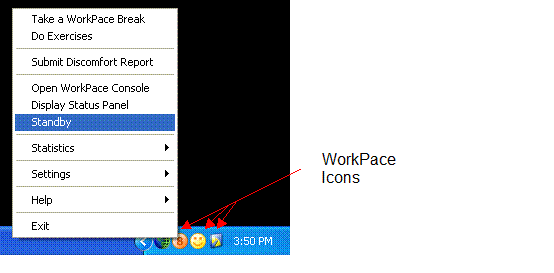
Alternatively
right mouse click on any of the WorkPace icons in the system tray and select
standby. WorkPace may be reactivated in
the same manner.
How come I can not change some settings?
Some
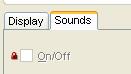
settings are locked by the system administrator. These settings will be greyed
out and display a lock symbol. If you
believe you require access to these settings please contact your OH&S
administrator.
What if my breaks are too long, to short, to often or not
often enough?
You
may customise your settings using the WorkPace console or run the setup wizard to obtain settings more suitable to
your work practices. There is online help
to assist you and inbuilt frequently asked questions about all the WorkPace
settings. When you make changes remember to click the apply button.

WorkPace
is activity based, the more you use your computer without taking natural
breaks, the more you will be prompted to take breaks.
I don’t get any/enough breaks and work at my desk
all day but don’t use the computer all the time.
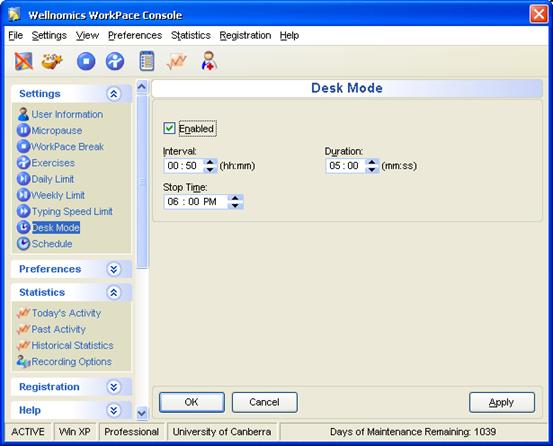
WorkPace
supports a desk mode timer. This timer will give a break after a period of
inactivity. To enable the desk mode
timer open the WorkPace console and select settings desk mode and check the
enable box. The interval selects the time of inactivity that must be
accumulated before the break is prompted. The duration selects how long the
break will be displayed for. When you make changes remember to click the apply
button.
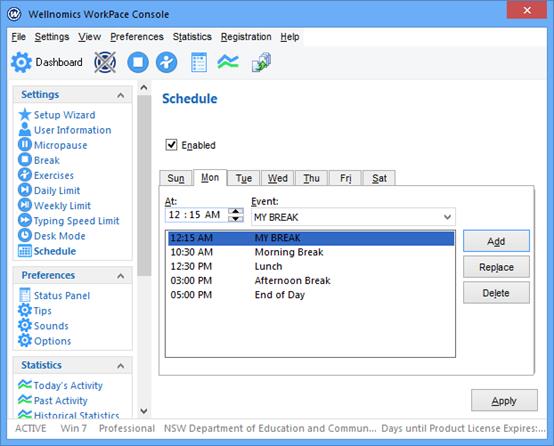
You may also
schedule breaks for any time of the day you like. For example ever hour
regardless of activity. Under the schedule tab select the time, name the break
and click add.
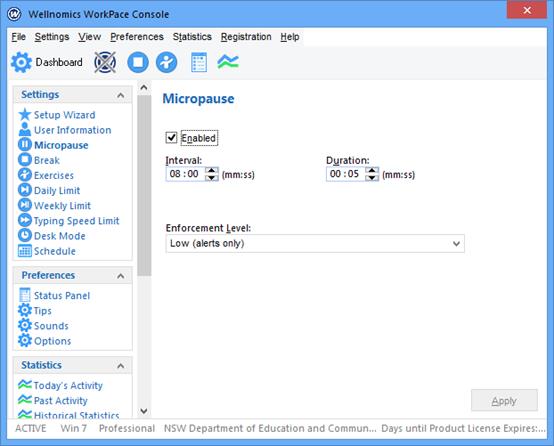
How do I adjust my Micropause settings.
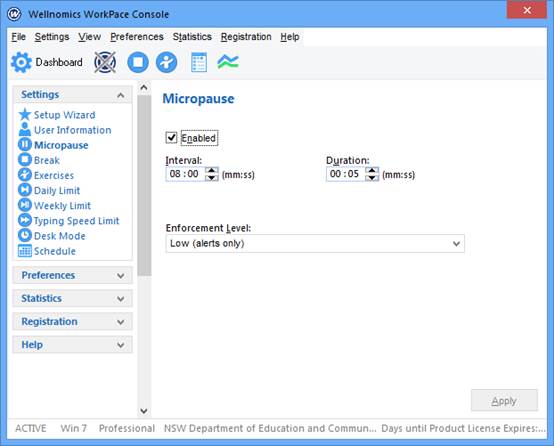
Open the Workpace console. Select settings-Micropause. The
interval sets how often the Micropause will appear and the duration sets how
long they will appear for. Remember WorkPace is activity based if you have a
natural Micropause by not using the mouse or keyboard for 1.5 X the duration
setting the Micropause timer will reset. In the example below, you would get a
Micropause every 8 minutes for 5 seconds if you did not stop using the keyboard
or mouse for at least 7.5 (1.5x5) continuous seconds within the configured 8
minute window. If you have a lot of natural breaks you will see less Micropauses.
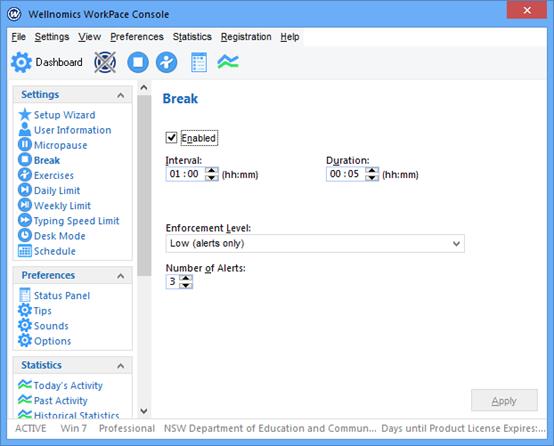
How do I adjust my WorkPace break settings.
How can I stop WorkPace from locking up my PC?
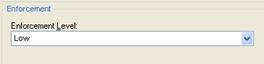
 WorkPace has varying levels of
enforcement from high (locks up your PC) to low (alert only). Adjust the
enforcement to a lower level if required. Open the WorkPace console under the settings tab select the
item to be adjusted i.e. Micropause, rest break etc. Select the desired
enforcement level and click the apply button.
WorkPace has varying levels of
enforcement from high (locks up your PC) to low (alert only). Adjust the
enforcement to a lower level if required. Open the WorkPace console under the settings tab select the
item to be adjusted i.e. Micropause, rest break etc. Select the desired
enforcement level and click the apply button.
Note:
if you have a current or pre-existing medical condition which causes you
discomfort while working at your computer, it is advisable to enforce your
breaks.
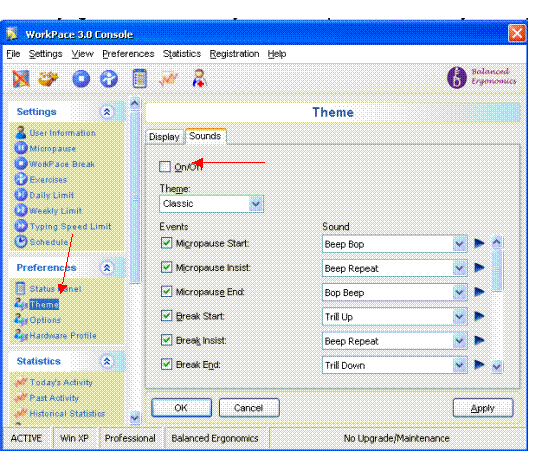
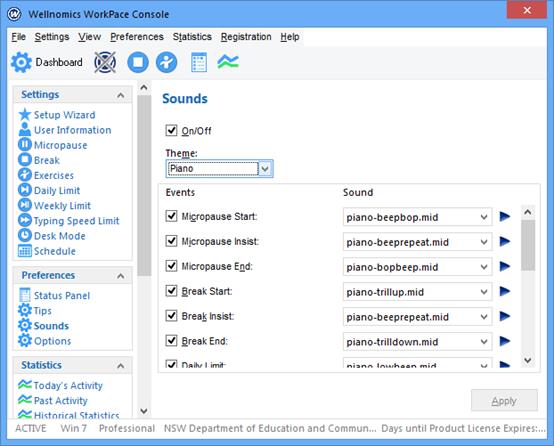
How do I turn the sound off/on?
Open
the WorkPace
console. Select the
preferences tab, select the theme tab, select the sound tab and uncheck the
sound box.
Version
4.x or lower
Version 5.x or higher
Under
preferences select sound.
How do I get rid of the
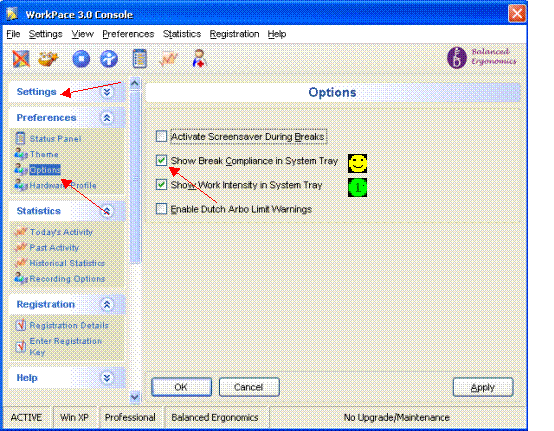
work intensity and break compliance icons?
 Open the WorkPace console. Select preferences, select options,
uncheck the show break compliance and show work intensity box and click the
apply button.
Open the WorkPace console. Select preferences, select options,
uncheck the show break compliance and show work intensity box and click the
apply button.
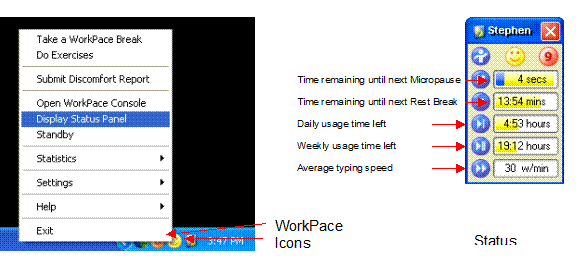
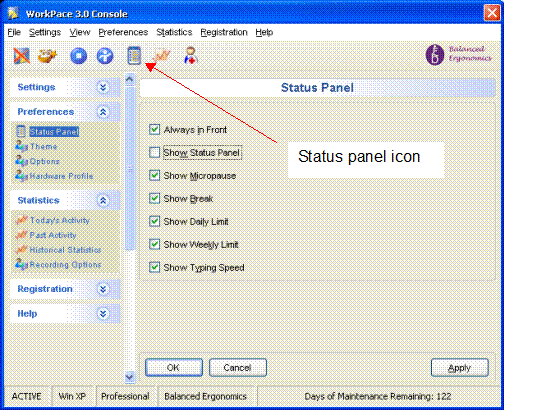
How do I display the status panel? Make it automatically
show, or hide it.
To
display the status panel right mouse click on any of the WorkPace icons in the system tray and select
“display status panel”. You may also open the WorkPace console and select the status panel
icon.
You
may configure the status panel to be displayed automatically on start-up, or to
be in front or behind your current application. You may also configure what is
displayed in the status panel. Open the WorkPace console and select preferences status panel.
Select the items you want displayed. If you select show status panel, the
status panel will be displayed automatically at start-up. If you select always
in front, the status panel will be displayed on top of your current
application. You may close the status panel at any time by clicking the red X.
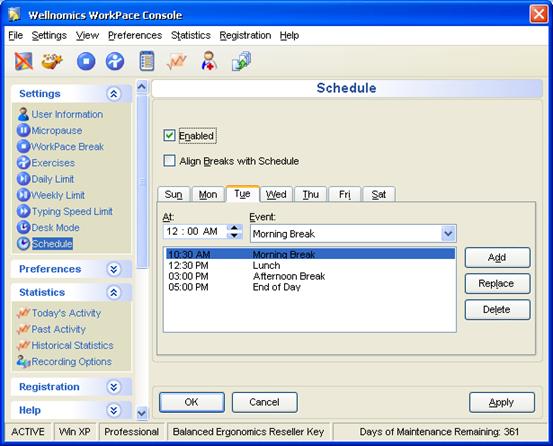
How do I turn off the
morning, tea lunch, afternoon tea and end of day timer?
Open the WorkPace console select settings-schedule. Uncheck the
enable box to disable the warning. You may also change the time of each warning
or individually remove any of the warnings.
How does WorkPace decide when to
pause the break timers?
For
Rest Breaks, you are defined as using the keyboard or mouse if you have made
any action with the keyboard or mouse within the last 10 secs. The chances are
that even if there is 10 seconds between two successive actions you will still
have been holding your hands over the keyboard, or gripping the mouse between
these two actions. If there is longer than 10 seconds between actions then it
is more likely that you have let go of the mouse, or relaxed your hands and
arms.
If
you have not made any action for over 10 secs then you are hopefully taking a Micropause,
or beginning a rest break, so we pause the Micropause and rest break timers.
If
you have not made any action for more than 30 seconds you have hopefully left
the computer and stopped using it, so we pause the daily and weekly limit
timers and stop counting computer usage.
How often will I get Micropauses?
Exactly
how often Micropauses occur will obviously depend on your WorkPace settings.
However, even with the same settings there can be a tremendous variation in how
often Micropauses are prompted. Many people will only see a few Micropauses an
hour at most. This is because WorkPace detects natural pauses in your work
practices and resets the Micropause timer. However, in times when you are
working very intensively, perhaps towards a deadline, you may be taking less
natural breaks, meaning that you will be prompted more often by WorkPace to
take a Micropause. In fact this is exactly when you need it. Remember WorkPace
analyses work intensity.
Studies
of many thousands of people using WorkPace have shown that a user with average Micropause
settings of 8 seconds after 6 mins computer use will get an average of 4-5 Micropauses
a day (only 40 seconds!). Note that this is an average - you will get more Micropauses
on some days, less on others. Users with more strict settings will get more Micropauses
- e.g. if your settings are a 20 second Micropause after 4 mins you may get 20
or more Micropauses a day.
How often will I get Rest Breaks?
How
often you see a Rest Break will depend upon both your WorkPace settings and how
intensively you are using your computer. If you regularly take breaks of 4 - 5
mins away from the computer WorkPace will detect this and reset the Rest Break
timer. This means that with a Rest Break interval of say 45 mins you may still
be able to work an eight-hour day at the computer without seeing more than 1 or
2 Rest Breaks. Some people whose computer work is naturally interrupted by lots
of breaks hardly ever see a Rest Break. On the other hand, if you have a
particularly intensive day on the computer and take very few breaks you will
see far more Rest Break warnings than normal. Remember WorkPace is monitoring
for over use, the more you work without a break the more you will be prompted
for a break.
Studies
of many thousands of people using WorkPace have shown that a user with average
WorkPace settings of a 5 minute break after 55 mins computer use will get an
average of 1 Rest Break warning a day. Note that this is an average - you will
get more rest breaks on some days, less on others. Users with more strict
settings will get more Rest Breaks.
Sometimes WorkPace gives me a Rest Break after coming back
from a break! Why?
Your
break must have been too short! WorkPace will reset the Rest Break timer if you
naturally take a break of longer than 100% of your Rest Break duration setting.
This means if your normal WorkPace Rest Break is set to 5 minutes you must take
a break of 5 minutes or more for WorkPace to accept your natural Rest
Break. Note to see if your Rest Break
has reset check the Rest Break timer on the Status Window.
How does WorkPace measure computer (and mouse) usage?
Computer
usage time is counted as any time in which there was mouse or keyboard activity
within the last 30 seconds.
Mouse
usage is counted as any time in which there was a mouse click or mouse movement
within the last 2 seconds.
Note
that keyboard usage does not simply equal computer usage minus mouse usage.
Why?
Firstly, computer usage is counted on a different time basis to mouse usage (or
keyboard usage). Secondly, it is possible to be using both the keyboard and the
mouse at once, especially if the overlapping of the times described above are
taken into account.
Effectively
the measurement of computer usage takes into account both 'active' and
'passive' usage, whereas mouse usage only measures 'active' use of the mouse.
Why is usage measured in these ways, and what is 'active' and
'passive' computer usage?
Calculating your actual time using the computer - i.e.
the keyboard or mouse is not quite as straightforward as might first appear.
Firstly
why are we trying to measure usage? As far as WorkPace is concerned the major
risk factors for OOS problems from computers are muscle tension and constrained
posture, not so much just the actions of typing, clicking, and moving the
mouse. Most of us are not high-speed copy typists and it is not the number of
keystrokes or mouse clicks that is the main risk factor.
As
far as muscle tension goes it is possible to maintain undesirable levels of
muscle tension without even typing or moving the mouse (i.e. 'passive' computer
usage). Try sitting in your chair and either holding your arms over the
keyboard, or gripping the mouse tightly and then not moving from this position
for 30 minutes. At the end of this period you will be feeling uncomfortable,
with some level of discomfort even though you may not have typed a single
keystroke, or moved the mouse a millimetre.
Consequently,
as far as risk factors go we are more interested in the time you spend at the
computer without getting up for a break or changing your posture, or how long
you spend gripping the mouse.
The
second issue is if usage is measured as simply the time you spend actually
typing or mouse clicking (i.e. 'active' usage) then what do we actually measure
-- simply the time it takes to press the keys? One might say that the time it
takes to click or press a key is almost instantaneous. For example, if you were
to do two keystrokes every second for 30 minutes how long have you been using
the keyboard? In reality the time taken to press and release each key is only
about 1/5 of a second or less. Does this mean that you have actually used the
keyboard for less than 12 mins? Certainly as far as we are concerned you were
using the keyboard for the entire of that 30 minutes.
There
is unfortunately no known defined and agreed-upon way to measure computer
usage. Accordingly WorkPace uses a set of rules based upon an appraisal of the
true risk factors in use your computer, as were explained above.
Instead
of only counting the time actually spent typing or using the mouse WorkPace
uses a predefined threshold.
For
most people the default settings of these thresholds will be satisfactory,
representing a compromise between minimising unnecessary warnings and
maximising the protection against muscle tension that WorkPace offers.