Standalone Local installation Procedure for WorkPace 5.X
This procedure is to assist in the installation of WorkPace 5.x in a standalone installation.
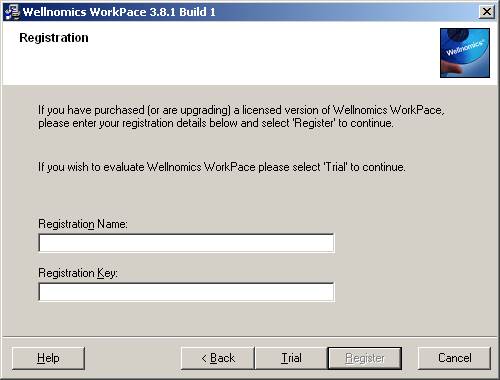
If you have purchased WorkPace or have a license key please enter you key when prompted.
To install WorkPace you will need administration rights to install new software. Contact your IT support to determine if you have these rights. If unsure you may start the installation process however if you do not have the appropriate rights the installation will stop, then remove any files that were installed. You will then need to contact your IT help desk for assistance. At any stage of the installation please feel free to contact www.balancedergonomics.com for assistance.
You will need to download the latest version of WorkPace 5.x from http://www.workpace.com
Note some security systems will not allow you to download files with a *.zip or .exe name. If you have problems downloading the file contact you help desk or www.balancedergonomics.com.
See below the screen shots of what you will see during the installation process.
Frequently Asked Questions and general information for people new to WorkPace can be found at http://www.balancedergonomics.com/workpaceinformation/workpacehelp.htm
You may also visit the WorkPace website for additional information about the WorkPace program. http://www.workpace.com
Feel free to contact Balanced Ergonomics at anytime for assistance 02 94522444 or email support@balancedergonomics.com
Download and save
the installation file and manuals from www.workpace.com
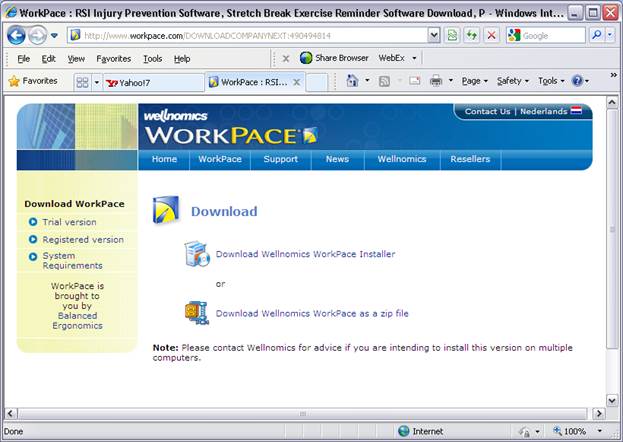
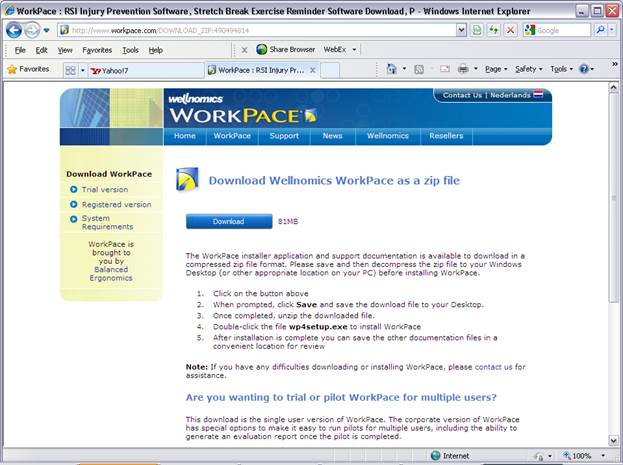
Save the file to
your local disk remember where you save it to.

In windows explorer locate the file wp4setup.zip or wp4setup.exe double click on the file. The compressed file will be expanded (it may look different to below depending on your unzipping program)

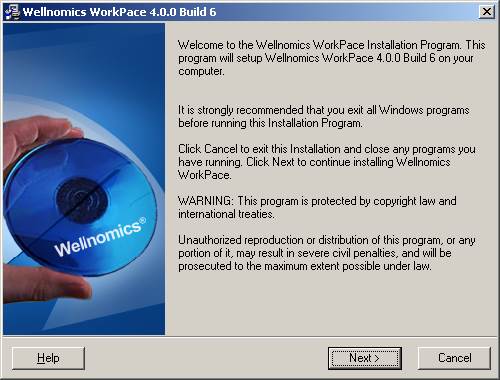
Run the file wp4setup.exe (double click)
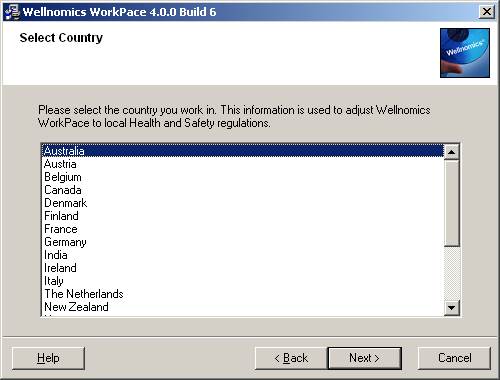
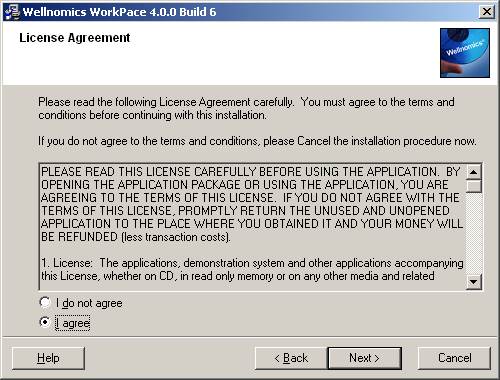
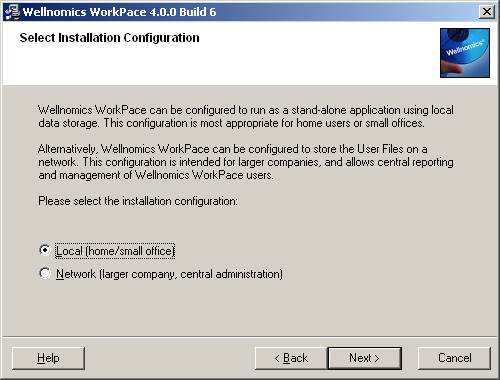
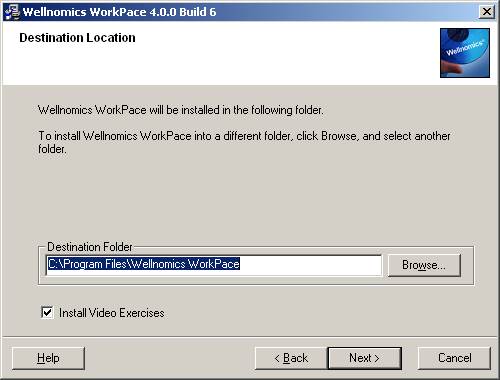
Selecting the defaults (except country and language) are suitable for a standalone installation.
Select Trial if you don’t have a key. WorkPace will run for 30 Days. If you have an activation key enter it now. Note the key is case sensitive.
Deselect the Registry option if you prefer WorkPace to automatically start using your start-up menu.
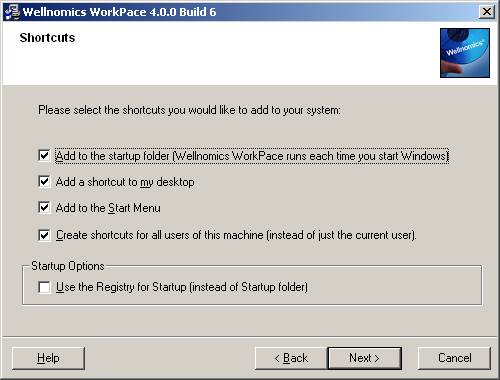
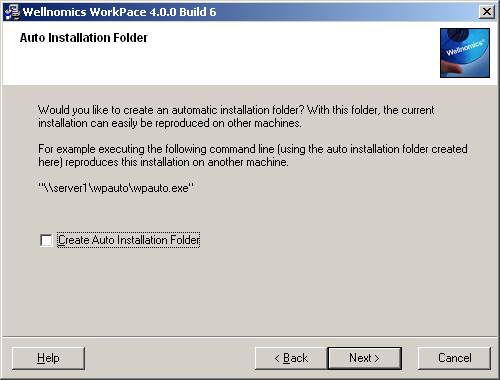
Do not select this option in a standalone installation.
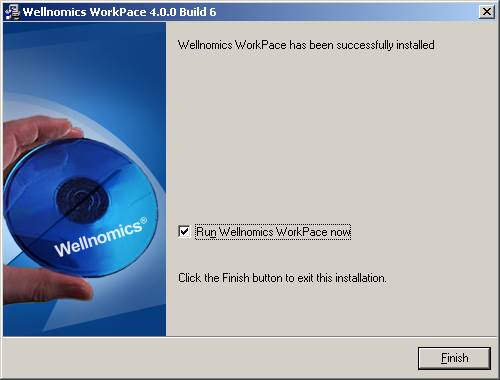
Configuring WorkPace to suite your needs
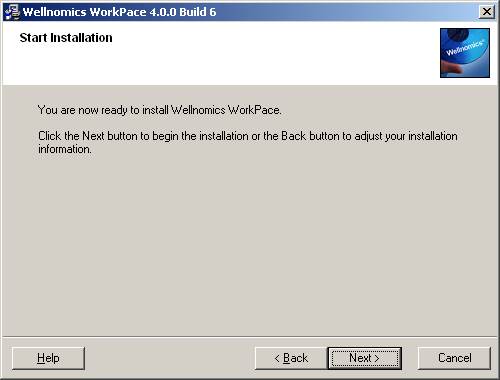
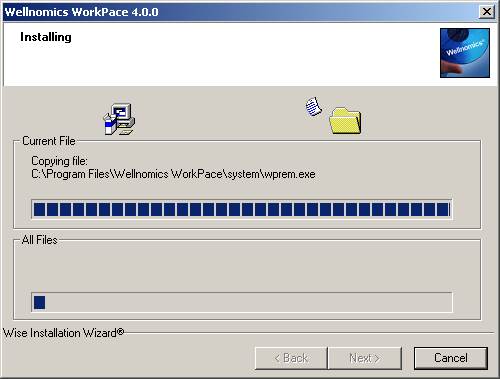
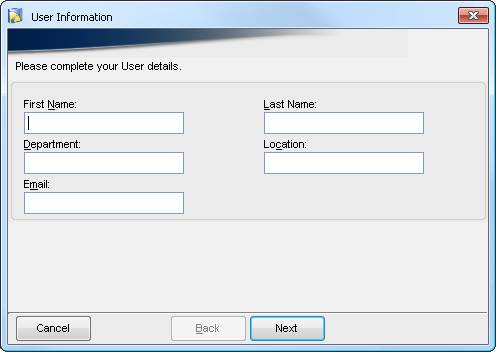
Follow the setup prompts. Note you may change your settings after the installation.
It is recommended you complete the training module.
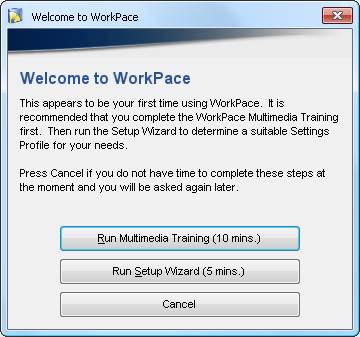
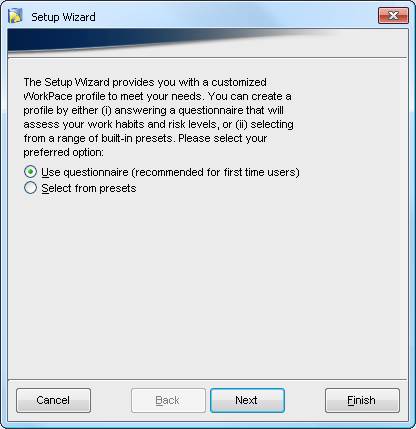
Run Setup Wizard (recommended)
You can use the setup wizard to configure the settings for you. You will have a choice of using a question wizard or a range of inbuilt presets. If you suffer pain or discomfort from using the computer or have a pre existing condition you should use the questionnaire.
Note the settings will be quite strict if you select settings appropriate for, or answer questions that you have an injury. You can change the settings at any time. The following site contains some good information on configuring your settings and FAQ’s for people new to WorkPace. http://www.balancedergonomics.com/workpaceinformation/workpacehelp.htm
Checking your configuration
Once the wizard is complete the settings appropriate to your answers will be displayed. Review these carefully. You may wish to change these if they seem too strict. Remember these are the suggested settings for your condition.
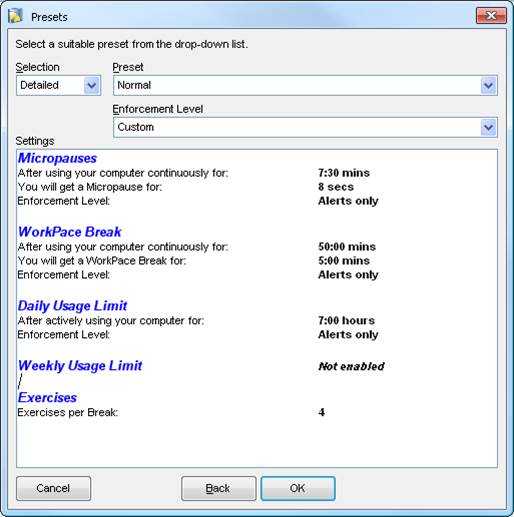
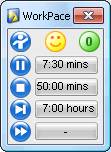
Once complete the status panel will be displayed. This may be closed and the program will continue to run.
Disclaimer
The settings suggested by WorkPace do not offer any guarantee with respect to injury prevention. Your risk of injury may be affected by workstation design, keyboard design, posture, chair design, time worked without rest breaks, type of work, activities outside the workplace, and individual physiology.
The product WorkPace should in no way be considered a substitute for treatment by a qualified physician. If you have a pre-existing medical condition, please consult your physician prior to using this product. If pain develops or continues after using the WorkPace program, consult a qualified physician to determine the appropriateness of future use.